Financial Operations
Bank Reconciliation on QuickBooks Online Made Simple
Learn bank reconciliation on QuickBooks Online step by step — match transactions, fix discrepancies, and close your books in 5 days with confidence.
ByJumpstart Partners, CPA, QuickBooks ProAdvisor
··18 min readYour bank feed says everything looks fine. Your controller, bookkeeper, or office manager says the transactions are matched. Then month end shows up, cash doesn't tie, the balance sheet has unexplained movement, and your investor update gets delayed because nobody trusts the bank balance.
That's the trap.
For SaaS companies, agencies, and professional services firms, bank reconciliation on QuickBooks Online is not a bookkeeping chore. It's a control system. If you treat it like a click-through task, you'll close late, argue over cash, and carry hidden errors into payroll, revenue reporting, and tax work.
The bigger problem is simple. A matched bank feed is not the same as a reconciled account. If you want cleaner closes, better lender reporting, and books you can hand to an investor without apology, you need a formal policy around feed matching, statement review, and reconciliation history. If you need a broader refresher on monthly reconciliation for UK businesses, that piece gives useful context. For close discipline across the rest of the balance sheet, pair this with these month-end close best practices.
Table of Contents
- Why Unreconciled Books Stall Your Month End Close
- What to Prepare Before You Reconcile in QuickBooks Online
- How to Complete Your Reconciliation and Reach Zero Difference
- Bank Feed Matching Versus Formal Reconciliation and AI Import
- Fixing Discrepancies and Protecting Your Reconciliation History
- Red Flags Best Practices and Your Next Steps to a Faster Close
Why Unreconciled Books Stall Your Month End Close
Founders usually assume this: if the bank feed is connected and the transactions are categorized, the books are basically done.
That assumption is wrong.
QuickBooks Online makes a clear distinction between day-to-day transaction handling and the official reconciliation process. Intuit's process is complete only when you go to Accounting > Reconcile, enter the statement ending balance and ending date, compare statement lines, and finish when the Difference reaches $0.00 in the formal workflow described in QuickBooks Online reconciliation instructions.
Matched doesn't mean controlled
A matched bank feed tells you a transaction likely belongs in the books. It does not prove that the account ties to the bank statement for the period.
That gap matters most when you're trying to close fast. If your checking account is only “mostly right,” every downstream report becomes suspect. Deferred revenue can be right and cash can still be wrong. Payroll entries can be posted and cash can still be wrong. Your P&L can look plausible while your balance sheet is unreliable.
Practical rule: If you haven't completed a formal reconciliation to zero, you don't have a close. You have a draft.
Why investors and lenders care
Outside stakeholders don't care that your feed imported cleanly. They care that the ending cash balance ties to a bank statement and that changes after close can be traced.
QuickBooks Online stores each completed reconciliation as a retained report. Intuit describes those reports as a static snapshot of the company's position at the time of reconciliation, including beginning and ending balances plus cleared and uncleared transactions, and says you can retrieve them later through History by account in its reconciliation report guidance. That matters because an investor-ready close needs evidence, not memory.
What a disciplined reconciliation process gives you
When you run bank reconciliation on QuickBooks Online as a control system, you get three practical advantages:
- Cleaner cash visibility: You stop making decisions off an unreconciled bank balance.
- Faster exception handling: Missing items, duplicates, and timing differences surface while the statement is still fresh.
- Better audit support: You retain the original reconciled state instead of rebuilding it from spreadsheets and Slack threads.
If you're running a business between $1M-$5M ARR, that's the line between “we think the books are right” and “we know they are.”
What to Prepare Before You Reconcile in QuickBooks Online
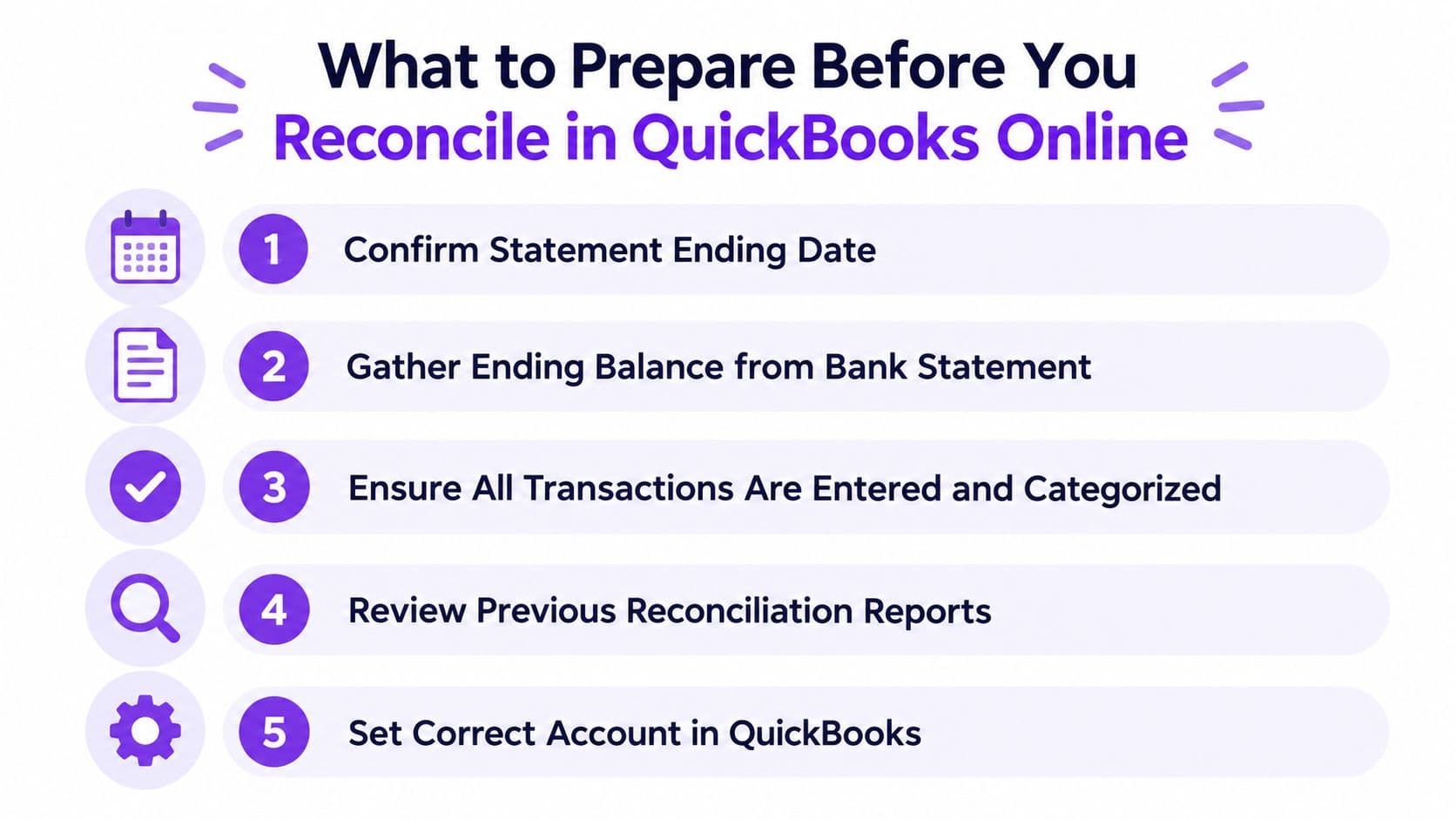
Most reconciliation problems start before you click Reconcile. The software isn't the issue. Your setup is.
If you want the Difference to hit zero without a cleanup project, start with the statement and the prior close.
Lock the period before you touch the current month
One of the most common causes of reconciliation failure is a beginning balance that changed after the prior month was closed. Expert guidance flags altered prior-period reconciliations, backdated entries, and bank-feed items added as new transactions instead of matched to existing records as core failure points in this QuickBooks Online reconciliation workflow guide.
Use this simple roll-forward logic:
| Item | Example |
|---|---|
| Prior statement ending balance | $48,250 |
| Current statement beginning balance | $48,250 |
| If QuickBooks beginning balance shows | $47,950 |
| Unexplained difference to investigate | $300 |
That $300 gap tells you someone changed history. Don't start the new reconciliation until you find the edited, deleted, or misposted transaction.
Confirm the statement details exactly
Intuit's process starts with the statement ending balance and ending date, entered exactly as shown on the statement. Intuit also says the current statement should begin the day after the last statement ending date in its reconciliation instructions. If those inputs are wrong, every click after that wastes time.
Use this prep checklist every time:
- Pull the final bank statement: Don't reconcile from a live online banking screen that can change during the month.
- Match account to account: Confirm you selected the exact bank or credit card account in QuickBooks Online.
- Check the date range: The statement should pick up immediately after the prior statement end.
- Review uncategorized feed items: Don't let unreconciled transactions sit in limbo.
- Inspect duplicates: If a bank-feed line already exists in QuickBooks, match it. Don't create a second transaction.
Clean feed behavior before formal reconciliation
Bank feeds are useful, but they create mess when your team uses “Add” instead of “Match” by habit. That creates duplicates and forces cleanup later.
For high-volume accounts, I recommend a short operating checklist before month end:
- Daily or near-daily review: Match known customer receipts, vendor payments, and transfer activity as they come in.
- Hold uncertain items: If the memo, vendor, or amount looks off, investigate before posting.
- Review prior reconciliations: If the account has a history of beginning balance drift, check old reports first.
- Escalate stale issues: If the account has repeated mismatches, treat it as a cleanup issue, not a one-off nuisance.
If your file has recurring feed mistakes, use a structured QuickBooks cleanup checklist before trying to brute-force another month end.
Reconciliation gets easy when the ledger is clean before the statement arrives.
How to Complete Your Reconciliation and Reach Zero Difference
This is the part many teams rush. Don't. The formal workflow is where QuickBooks Online turns routine transaction processing into a documented control.
Start with the official navigation path, then work in a strict sequence.
Follow the formal QuickBooks Online workflow
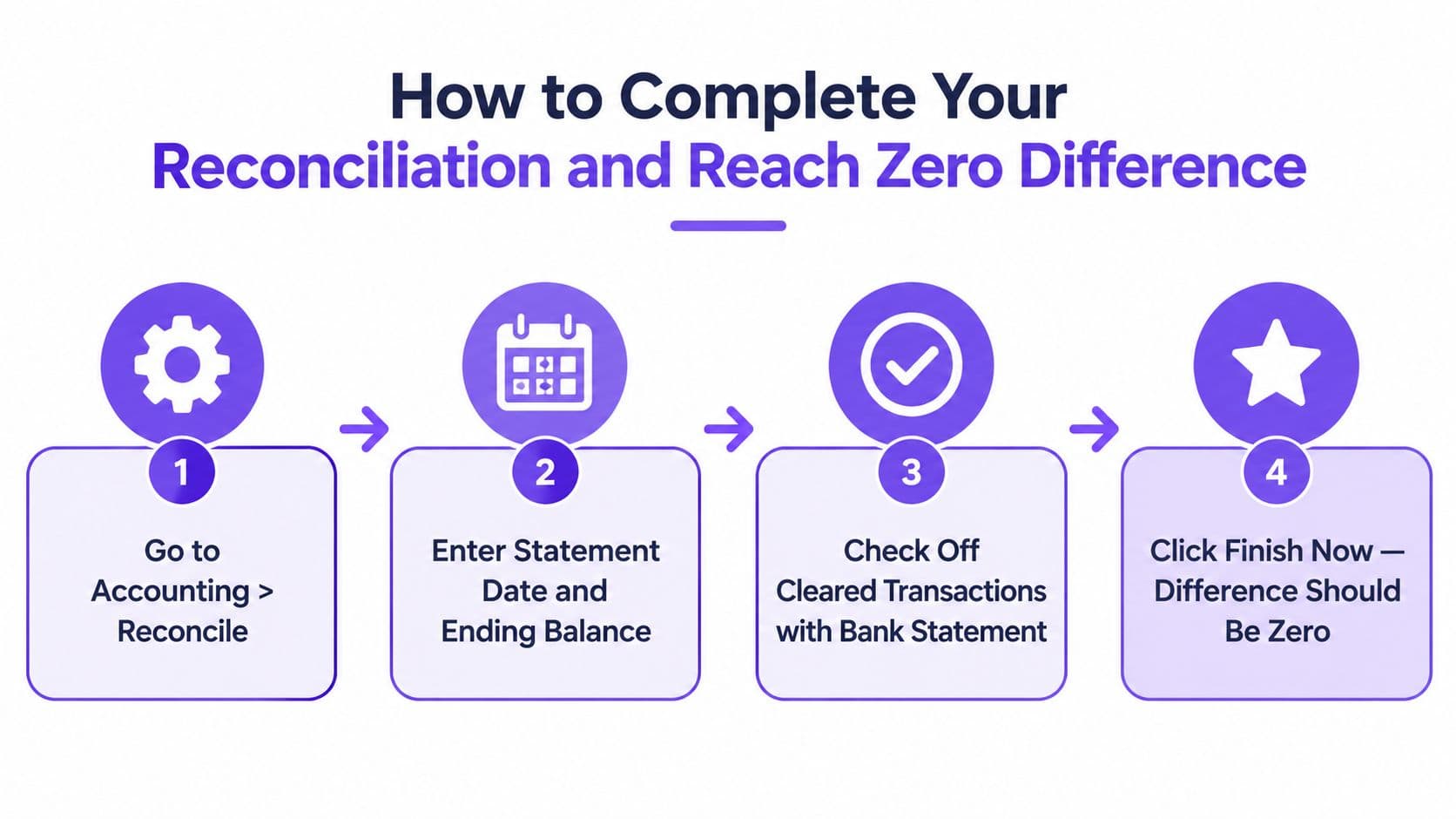
QuickBooks Online reconciliation starts at Accounting > Reconcile. Select the account, enter the statement ending balance and ending date, and continue only when those inputs match the statement exactly. Intuit says the process is complete only when the Difference is $0.00 and you click Finish now in its support article on reconciling an account.
Intuit also makes the matching rule explicit. You compare statement transactions line by line, check the box for each matching item, and the Cleared balance updates as you go. If a transaction matches the bank statement but the details are wrong, edit the transaction before finishing, as explained in QuickBooks Online reconciliation instructions for Canada.
Use the right matching order
Don't click randomly through the list. Reconcile in this order:
-
Deposits and receipts first
Cash-in is where duplicate bank-feed adds and missing customer receipts often hide. -
Withdrawals and payments second
This catches vendor bills paid outside AP, debit card spending, ACH activity, and owner draws. -
Bank fees and interest last
These are small, easy to miss, and often explain the final stubborn difference.
This order reduces noise and helps isolate whether the issue is timing, duplication, or coding.
Here's a practical walkthrough using a checking account:
| Reconciliation example | Amount |
|---|---|
| Statement beginning balance | $25,000 |
| Cleared deposits on statement | $18,500 |
| Cleared payments on statement | $11,200 |
| Bank fee on statement | $35 |
| Interest earned on statement | $10 |
| Expected ending balance | $32,275 |
The math is straightforward:
$25,000 + $18,500 - $11,200 - $35 + $10 = $32,275
If the statement ending balance is $32,275, and your selected cleared items in QuickBooks also net to $32,275, the Difference should be $0.00. If it doesn't, stop and identify what's wrong. Don't force it.
Edit errors before you finish
If the bank shows a transaction and QuickBooks shows the same transaction with the wrong amount, date, or payee detail, fix the record before you complete the reconciliation.
That matters because reconciliation is a historical control. If you let a bad transaction remain and work around it, you're baking an error into your close.
For teams evaluating workflow improvements, this overview of bank reconciliation software is useful because it frames reconciliation as an operating process, not just a bookkeeping task.
Document every adjustment
If you need to add a missing bank fee, interest item, or correction entry, attach support and leave a clear memo. Your future self will need it. So will anyone reviewing the file later.
Controller view: Every reconciliation adjustment needs a reason, support, and an owner. If you can't explain the entry in thirty seconds, it doesn't belong in a clean close.
If you want a deeper operating checklist for recurring accounts, this guide on how to reconcile bank accounts is the right companion.
A quick visual walkthrough can also help if you're training a team member on the screen flow:
Finish only at zero
Founders often ask whether a small difference is close enough. It isn't.
Zero is the standard because reconciliation is a yes-or-no control. The account either ties to the statement for that date or it doesn't. If you normalize “close enough,” small errors become recurring errors, and recurring errors become a balance sheet nobody trusts.
Bank Feed Matching Versus Formal Reconciliation and AI Import
Your bookkeeper clears the bank feed every day. The dashboard looks clean. Then month end hits, the statement arrives, and cash still does not tie.
That happens because these QuickBooks Online workflows solve different problems. If you treat them as interchangeable, you lose close discipline, period cutoff gets sloppy, and nobody can say with confidence which cash balance was reviewed against the statement.
Intuit separates manual reconciliation, AI-powered reconciliation, and Statement Auto Import in its QuickBooks Online reconciliation overview. You should do the same in your close policy.
What each workflow is for
Bank feed matching belongs in your daily accounting routine. Its job is to keep the ledger current by matching downloaded activity to recorded transactions or creating new ones when the support is clear.
Formal Reconcile belongs in month end close. Its job is to prove the account balance in QuickBooks ties to the bank or credit card statement for a specific ending date.
AI import and statement upload speed up statement ingestion and review. They reduce manual data entry. They do not replace statement-based reconciliation, reviewer signoff, or a locked audit trail.
| Choosing the Right QuickBooks Online Workflow | |||
|---|---|---|---|
| Workflow | Best Use Case | Control Level | Risk If Misused |
| Bank feed matching in Transactions | Daily bookkeeping, categorization, matching known activity | Moderate | Team assumes matched activity means the account is closed |
| Formal Reconcile screen | Month end close, lender reporting, audit support | High | Weak control if skipped or done outside a formal close review |
| AI-powered reconciliation and Statement Auto Import | Faster statement ingestion and review support | Moderate to high, depending on oversight | Automation masks coding errors, duplicates, or cutoff mistakes if nobody reviews the result |
The policy you should set
Use all three workflows, but assign each one a clear role.
- Use bank feeds during the month to process routine inflows, outflows, and transfers.
- Use AI import or statement upload when volume is high or statements are cumbersome to enter manually.
- Use the formal Reconcile screen every month for every operating bank account and credit card account.
- Limit who can edit closed periods or unreconcile prior activity after review is complete.
That is the control system. Bank feeds keep work current. Formal reconciliation closes the period. AI import helps you move faster without weakening review.
QuickBooks Online also keeps a Reconciliation Change Report and History by account. Intuit explains how prior reconciliation reporting differs across products in its guide to previous reconciliation reports. For investor-ready reporting, that history matters because it shows who changed a cleared item, when they changed it, and whether your close stayed intact after signoff.
The misconception to shut down
Matched does not mean reconciled.
A matched bank feed line tells you QuickBooks found or created a transaction that appears to fit downloaded activity. A completed reconciliation tells you the full account ties to the statement for that date, including timing differences, missing items, duplicates, and the ending balance. Those are different standards.
If you are redesigning your close process, treat automation as support, not proof. This review of reconciliation automation tools for finance teams will help you decide where software saves time and where human review still protects the close.
Fixing Discrepancies and Protecting Your Reconciliation History
When a reconciliation won't tie, the typical response is often the wrong one. The hunt commences for a plug. An adjustment is added too early. Clicks scatter until the account “looks right.”
That's how a one-month issue turns into a six-month cleanup.
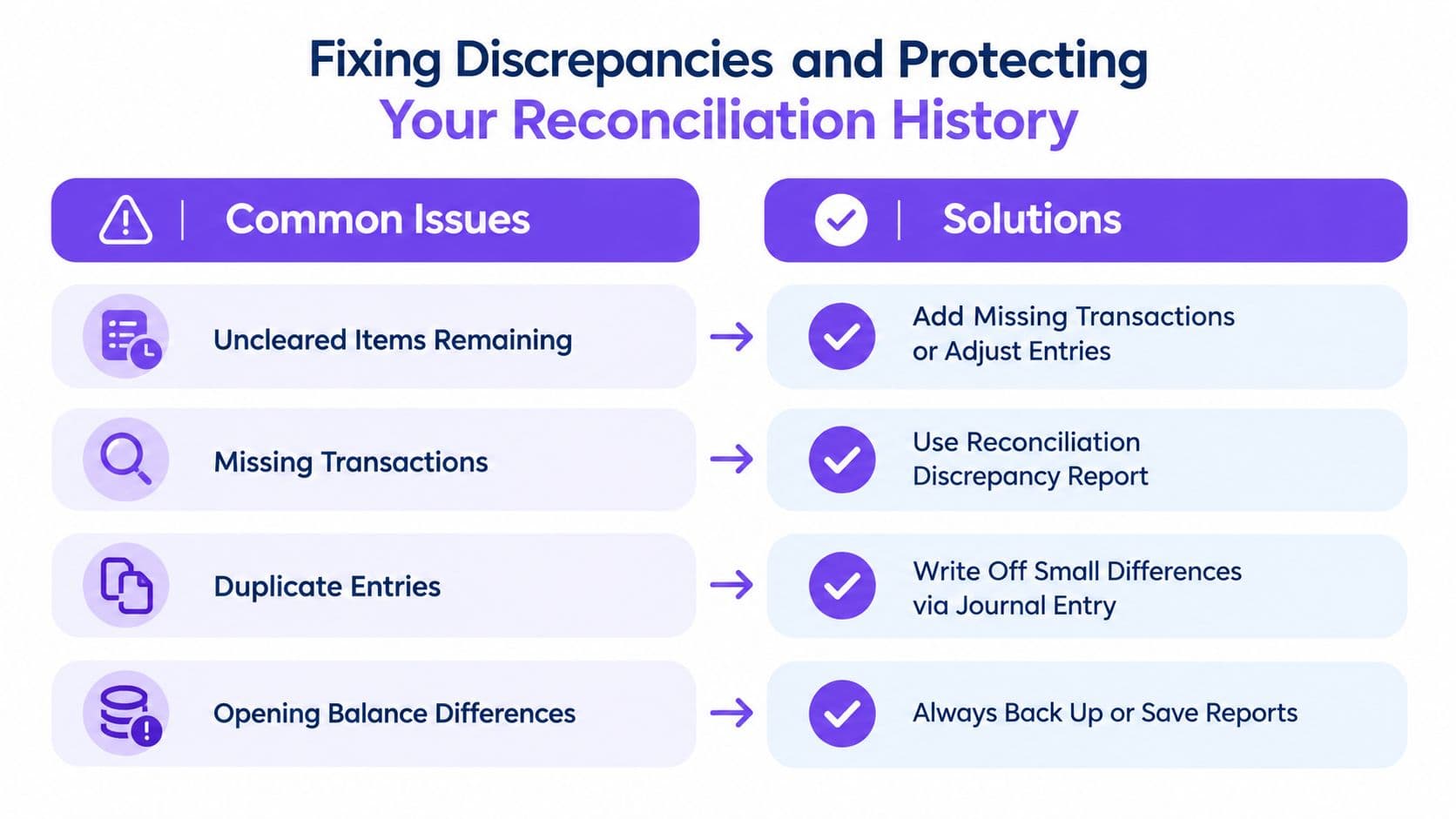
Intuit identifies the most common end-of-reconciliation problems as transactions entered in QuickBooks that haven't yet cleared the bank, missing transactions, and duplicate transactions in its troubleshooting guidance for end-of-reconciliation issues. That should shape your triage order.
Triage the difference by root cause
Start with the obvious categories:
- Uncleared items: The transaction is in QuickBooks but didn't clear the bank by statement end. Leave it unreconciled for the current period.
- Missing items: The bank statement shows it, but QuickBooks doesn't. Record it properly before finishing.
- Duplicates: The transaction exists twice, often because someone added a feed item instead of matching it.
- Opening balance drift: A previously reconciled transaction was edited, deleted, or had its reconciled status changed.
Persistent small differences usually come from that last category. The current month isn't really the problem. Historical edits are.
Protect the audit trail while you fix it
QuickBooks Online's retained reconciliation history is useful only if you treat it as evidence. Intuit's support content also points to exception handling for deleted and re-entered checks or credit card entries, prior reconciled accounts, and the expanded control surface around undo activity in its guidance on fixing issues in accounts reconciled in the past.
Use this exception workflow:
- Pull the prior reconciliation report for the affected account.
- Review History by account to confirm the original statement-ending balance and date.
- Check the Reconciliation Change Report if the beginning balance shifted unexpectedly.
- Identify the exact edited, deleted, or re-entered transaction.
- Correct the root cause, then rerun the current reconciliation.
Small recurring differences are usually evidence of a broken process, not bad luck.
Set a real cadence and hold the line
Expert guidance says you should reconcile monthly at minimum, and weekly is preferable for high-volume accounts, with a review of the reconciliation report after each session to catch post-close changes or unexplained drift, as noted in Intuit's reconciliation issue guidance.
That cadence is essential if you process a lot of Stripe payouts, agency pass-through spend, ACH vendor payments, or owner activity.
For finance leaders cleaning up legacy files, this is also where an outsourced controller, internal accounting lead, or a provider like Jumpstart Partners can take over the investigation instead of letting your operations team guess through prior-period damage. If corrections hit closed periods, document them carefully and route them through a formal prior period adjustment policy.
Red Flags Best Practices and Your Next Steps to a Faster Close
It's the third business day of the month. Your bank feed looks clean, but cash still is not signed off, your controller cannot show a saved reconciliation report, and an investor diligence request just hit your inbox. That is not a bookkeeping nuisance. It is a close control failure.
Bank reconciliation on QuickBooks Online should give you two things: a verified cash position and a saved audit trail. If you only have matched bank feed transactions, you do not have either one.
Red flags you should treat seriously
- Your cash account looks current in the bank feed, but no formal reconciliation report exists: Matching activity is not the same as closing the account.
- Your beginning balance changes after a prior close: Someone edited a cleared period, and your close evidence is no longer reliable.
- The same small difference rolls from month to month: Your team is carrying unresolved errors instead of fixing the process.
- AI-imported statement activity posts without review of duplicates or misclassifications: Automation is creating speed at the expense of control.
- Too many users can edit, unreconcile, or replace cleared transactions: Your audit trail is exposed.
- No one locks the period after reconciliation is finished: You are inviting rework next month.
Best practices that speed the close
Use a simple standard and enforce it.
| Best practice | Why it matters |
|---|---|
| Use bank feeds for daily coding and cash monitoring | Keeps current-month activity moving without waiting for month-end |
| Use the formal Reconcile tool to close each bank and credit card account | Produces the month-end proof that cash and liabilities tie to the statement |
| Use AI statement import for cleanup or missing feed data, then review every exception | Speeds data capture without giving up review |
| Lock prior periods after the close is approved | Stops beginning balance drift and protects your audit trail |
| Save and review the reconciliation report for every completed account | Creates support for diligence, audits, and handoffs |
| Restrict who can change reconciled transactions | Reduces avoidable breakage in closed periods |
QuickBooks Online gives you different tools for different jobs. Bank feed matching helps you process activity during the month. Formal reconciliation closes the account against the statement. AI import helps fill gaps when feeds are incomplete or when you are cleaning up backlog. Treating those tools as interchangeable is what slows the close.
Set one rule for your team. An account is not done until it is formally reconciled, the report is saved, and the period is locked.
Jumpstart Partners provides outsourced controller and bookkeeping support for SaaS companies, agencies, and other growing businesses that need reconciliations tied to a reliable month-end close. If your QuickBooks Online file has drifted, your bank feeds are creating duplicates, or your team needs a tighter reconciliation policy, visit Jumpstart Partners to see how they can help clean up the books and build a repeatable close process.